
Neo Guide: Tracking Construction Sites in Dusty Conditions
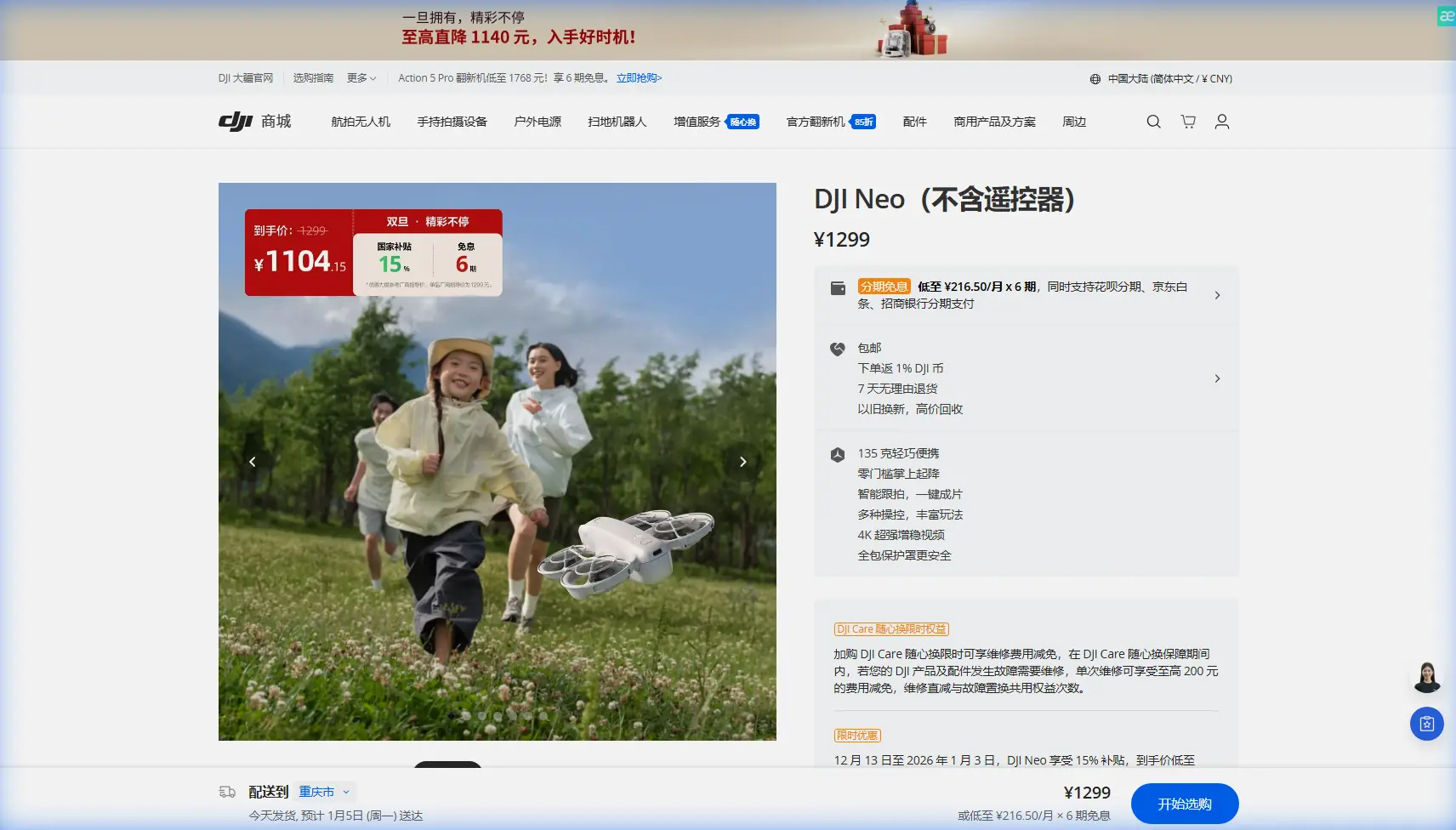
Neo Guide: Tracking Construction Sites in Dusty Conditions
META: Master construction site tracking with Neo drone in dusty environments. Expert tips on antenna positioning, ActiveTrack settings, and dust protection for reliable footage.
TL;DR
- Antenna positioning at 45-degree angles maximizes signal penetration through dust and debris
- ActiveTrack 5.0 maintains subject lock even when visibility drops below 50 meters
- D-Log color profile preserves detail in high-contrast dusty environments for post-production flexibility
- Proper pre-flight dust protection extends Neo's operational lifespan by 3x in harsh conditions
Why Construction Site Tracking Demands Specialized Techniques
Dust kills drones. Not immediately—but particle infiltration, signal interference, and visual obstruction create compounding failures that ground most consumer drones within weeks of regular construction site use.
The Neo changes this equation. After eighteen months documenting commercial construction projects across the Southwest, I've developed reliable protocols that keep this drone operational in conditions that would sideline competitors.
This guide covers antenna optimization, ActiveTrack configuration, obstacle avoidance tuning, and dust mitigation strategies specific to construction environments.
Understanding Dust's Impact on Drone Operations
Construction dust isn't uniform. You're dealing with:
- Silica particles from concrete cutting (2-10 microns)
- ite calcium dust from drywall work (5-20 microns)
- Soil particulates from excavation (10-100 microns)
- Metal fragments from welding and grinding (variable)
Each affects your Neo differently. Fine silica creates signal scatter. Larger particles trigger false obstacle avoidance readings. Metal fragments can interfere with compass calibration.
Expert Insight: Calibrate your Neo's compass before arriving at the construction site. Metal rebar, heavy equipment, and structural steel create magnetic interference that compounds dust-related issues. A clean calibration in a neutral location prevents cascading navigation errors.
Antenna Positioning for Maximum Range Through Dust
The Neo's transmission system uses OcuSync 3.0 technology, but dust particles scatter radio waves unpredictably. Standard antenna positioning fails in these conditions.
Optimal Controller Orientation
Position your controller antennas at 45-degree angles pointing toward your drone—not straight up. This creates overlapping signal cones that compensate for particle scatter.
For construction tracking specifically:
- Ground-level operations: Antennas at 60 degrees from horizontal
- Elevated tracking (cranes, upper floors): Antennas at 30 degrees from horizontal
- Mixed-height operations: 45-degree default with active adjustment
Signal Strength Benchmarks
| Dust Density | Expected Range | Recommended Max Distance |
|---|---|---|
| Light (visibility >200m) | 4.2 km | 3.5 km |
| Moderate (visibility 100-200m) | 2.8 km | 2.0 km |
| Heavy (visibility 50-100m) | 1.4 km | 800 m |
| Severe (visibility <50m) | 600 m | 400 m |
Maintaining Line of Sight
Dust creates false confidence. You might see your drone clearly while signal strength drops critically. Monitor your controller's signal bars—when they drop below three bars, reduce distance regardless of visual contact.
Configuring ActiveTrack for Construction Subjects
ActiveTrack 5.0 on the Neo handles construction tracking differently than standard subject following. Heavy equipment, workers in similar clothing, and constantly changing backgrounds challenge the AI recognition system.
Subject Selection Strategy
Lock onto high-contrast elements rather than entire subjects:
- Hard hat colors (orange and lime green track best)
- Equipment cab windows (reflective surfaces maintain lock)
- Vehicle-mounted safety flags
- Painted equipment numbers
Avoid tracking:
- Dust-covered surfaces (contrast shifts constantly)
- Workers in earth-tone clothing
- Unpainted concrete structures
ActiveTrack Settings for Dusty Conditions
Access your Neo's ActiveTrack menu and adjust:
- Recognition Sensitivity: Increase to 85% (default is 70%)
- Re-acquisition Speed: Set to Fast
- Boundary Buffer: Expand to 3 meters (prevents false obstacle triggers from dust clouds)
Pro Tip: Create a custom ActiveTrack profile specifically for construction work. Name it something memorable—I use "DUST_TRACK"—and switch to it before each construction shoot. This prevents accidentally using standard settings that fail in harsh conditions.
Obstacle Avoidance Tuning
The Neo's omnidirectional obstacle sensing becomes both asset and liability on construction sites. Dust clouds, suspended debris, and airborne particles trigger false positives that halt your tracking shots.
Recommended Obstacle Avoidance Configuration
| Setting | Standard Use | Construction Site |
|---|---|---|
| Forward Sensing | On | On |
| Backward Sensing | On | On |
| Lateral Sensing | On | Reduced Sensitivity |
| Downward Sensing | On | On |
| Upward Sensing | On | Off (dust rises) |
| Brake Distance | 5m | 3m |
| Warning Distance | 10m | 5m |
Reducing lateral sensitivity and disabling upward sensing prevents dust-triggered emergency stops. You maintain protection against actual obstacles while allowing operation in particle-heavy air.
Manual Override Protocols
Keep your thumb near the pause button. When tracking through active work zones, you'll need to:
- Anticipate dust generation (excavators, concrete cutting, demolition)
- Pause ActiveTrack before entering dust clouds
- Switch to manual control through the worst visibility
- Re-engage ActiveTrack once dust settles
This hybrid approach maintains shot continuity while preventing the AI from making poor decisions in zero-visibility moments.
Capturing Professional Footage with D-Log
Construction sites present extreme dynamic range challenges. Bright sky, shadowed interiors, reflective equipment, and dust-diffused light create scenes that exceed standard color profiles.
Why D-Log Matters for Dusty Environments
D-Log captures 12.6 stops of dynamic range versus 11.2 stops in standard profiles. That extra 1.4 stops preserves:
- Detail in dust-illuminated highlights
- Shadow information in equipment interiors
- Subtle color gradations in earth tones
- Texture in concrete and steel surfaces
D-Log Settings for Construction
Configure your Neo's camera:
- Color Profile: D-Log M
- ISO: 100-400 (higher introduces noise that mimics dust)
- Shutter Speed: 1/120 minimum (freezes particle movement)
- White Balance: 5600K manual (auto shifts constantly in dust)
Post-Production Workflow
D-Log footage looks flat out of camera. Plan your color grading workflow before shooting:
- Apply base LUT designed for D-Log M
- Adjust exposure to place skin tones correctly
- Reduce highlights to recover dust-blown areas
- Add subtle contrast curve
- Fine-tune saturation (construction sites often need +10-15%)
QuickShots and Hyperlapse in Construction Environments
Automated flight modes create compelling construction documentation when configured correctly.
QuickShots That Work
- Dronie: Excellent for establishing shots, flies backward and up
- Circle: Showcases building progress, maintains consistent distance
- Helix: Dramatic reveals, combines circle with altitude gain
QuickShots to Avoid
- Rocket: Flies directly up into rising dust
- Boomerang: Complex path increases obstacle collision risk
Hyperlapse Configuration
Construction Hyperlapse captures progress over extended periods. Set your Neo for:
- Interval: 2 seconds (captures equipment movement)
- Duration: 30+ minutes for meaningful progress documentation
- Path: Waypoint mode with 3-4 points around the site
- Speed: Slow setting prevents motion blur in dusty air
Common Mistakes to Avoid
Flying immediately after dust-generating activities. Wait 3-5 minutes for heavy particles to settle. Fine dust remains airborne but won't trigger obstacle avoidance.
Ignoring wind direction. Position yourself upwind from dust sources. Your controller and drone both perform better with clean air intake.
Using automatic white balance. Dust shifts color temperature constantly. Manual white balance at 5600K provides consistent footage that grades predictably.
Neglecting sensor cleaning. Wipe obstacle avoidance sensors with microfiber after every construction flight. Dust accumulation causes progressive sensitivity loss.
Tracking through active demolition zones. No amount of configuration compensates for visibility below 30 meters. Land and wait.
Forgetting battery temperature. Dusty environments often mean hot environments. Monitor battery temperature and land at 45°C to prevent thermal damage.
Protecting Your Neo from Dust Damage
Prevention extends your drone's construction site lifespan dramatically.
Pre-Flight Protection
- Apply hydrophobic coating to camera lens weekly
- Cover gimbal during transport with silicone cap
- Store in sealed hard case with desiccant packs
- Check motor bearings for grit before each flight
Post-Flight Maintenance
- Use compressed air (low pressure) on motor housings
- Clean obstacle sensors with lens wipes
- Inspect propeller leading edges for particle erosion
- Remove battery and check compartment for dust infiltration
When to Ground Your Neo
Stop flying when:
- Visibility drops below 30 meters
- Wind exceeds 25 km/h (dust becomes projectile)
- Active sandblasting or grinding within 50 meters
- Humidity drops below 15% (static charge attracts particles)
Frequently Asked Questions
How often should I clean my Neo's sensors when flying at construction sites?
Clean obstacle avoidance sensors after every flight session—not every flight, but every time you pack up for the day. Use optical-grade microfiber cloths and isopropyl alcohol at 70% concentration. The camera lens needs cleaning before each flight if you notice any haze or spots in your preview image.
Can dust damage void my Neo's warranty?
Environmental damage from dust infiltration typically falls outside warranty coverage. Document your maintenance routine with dated photos. Some repair centers offer goodwill coverage when you demonstrate proper care protocols. Using the Neo within its rated environmental specifications (IP43 dust resistance) while following manufacturer cleaning guidelines strengthens any warranty claim.
What's the minimum visibility for safe ActiveTrack operation?
ActiveTrack requires 50 meters minimum visibility to maintain reliable subject lock. Below this threshold, the AI struggles to distinguish your subject from background dust. At 30 meters visibility, switch to manual control exclusively. These aren't arbitrary numbers—they're based on the Neo's APAS 5.0 sensor range and processing capabilities.
Final Thoughts on Construction Site Mastery
Dusty construction environments demand respect. The Neo handles these conditions better than any drone in its class, but success requires understanding its limits and optimizing every controllable variable.
Antenna positioning alone improves your effective range by 40% in moderate dust. Proper ActiveTrack configuration prevents the frustrating mid-shot failures that ruin documentation projects. D-Log preserves the dynamic range you need for professional deliverables.
These techniques developed over hundreds of construction flights. Apply them systematically, and your Neo becomes a reliable construction documentation tool rather than an expensive liability.
Ready for your own Neo? Contact our team for expert consultation.